


How To Check Billing Details?
沃十一
Updated at: 9 months ago
How To Check Billing Details?
Spot Trading on BNQ Global is an avenue where users have the option to trade their cryptocurrency on the live market and on the spot. This means that the trades are done on the live market rate, without any leverage or interest rates. The trades are completed with the cryptocurrency that the user has in their wallet on the spot. BNQ Global offers three types of Spot Trading options, with different benefits for the user in each of these trades. These 3 types of Spot Trading are:
Spot Market Trades
Spot Limit Trades
Spot Trigger Trades
Now to for each of these trading types BNQ Global has employed a method where users have the option to check the order history, open orders, billing details, and more. This makes the trading experience more efficient and smoother for users. To check the Billing Details of your Spot Trade, follow this step-by-step guide:
Login to your BNQ Global account.
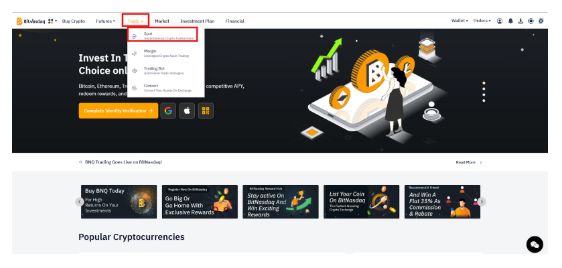
Once logged in, scroll to the Trade option available in the header.
Here click on the Spot option.
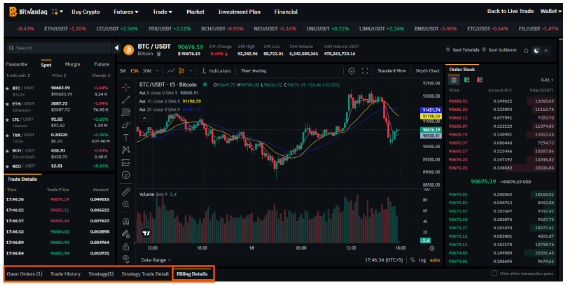
Once in the Spot Trading interface, scroll to the bottom of the candlestick chart.
Here there are multiple options available.
Out of these options select the Billing Details.
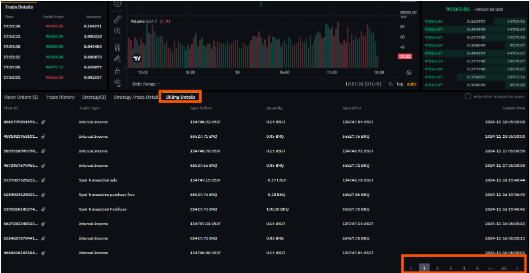
Once in the Billing Details tab, users have the option to scroll through their trade history with their Billing Details for Spot Trade. This includes for all 3, the Market Orders, Limit Orders, and Trigger Orders. The Billing Details gives the user the information on Trade ID, Trade Type, Spot Balance before the trades, Spot Balance after the trades, the Quantity of cryptocurrency, and the Time Stamp of the trade.
This organizes Spot Trading for all the users, making BNQ Global a user-friendly platform for all trading with all the features needed for smooth operations. Head out to BNQ Global now, and to Spot Trading.