


How To Open Short Limit Positions?
挖空币圈
Updated at: 9 months ago
How To Open Short Limit Positions?
Future Trading is all about increasing your potential, and with BNQ Global cryptocurrency exchange you can now make it happen. BNQ Global is built on the idea of user-centricity and an easy trading experience. With this idea, BNQ Global has built its Future Trading feature. Future Trading allows users to take even bigger leverage with some up to 100X. This makes the traders profit potential quite big. In Future Trading, traders don’t sell the actual asset, but rather the underlying contract of that asset, predicting on the price increase or decrease.
What Are Open Short Orders?
Open Short Orders essentially mean selling a Future contract, with the prediction that the price of the underlying cryptocurrency will downtrend in the future. Traders who Open Short positions in Future Trading are mainly betting on the price decrease, where they can buy the contract later at a lower price.
BNQ Global cryptocurrency exchange has an easy and use-centric interface for both the BNQ Global Website and the BNQ Global App. Let’s go through the step-by-step guide for Open Short Limit Orders via the website and the app.
Open Short Limit Positions Via BNQ Global Website
Follow these step-by-step instructions to Open Short Limit Position on the BNQ Global website:
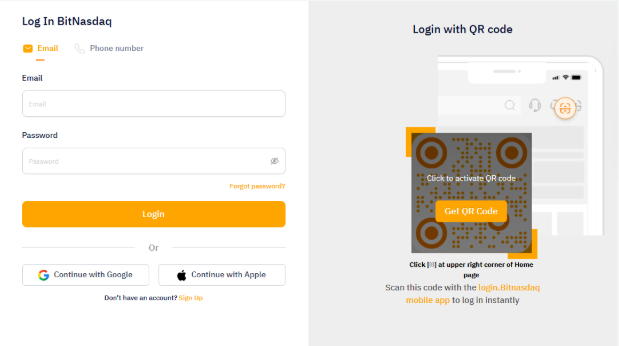
Log in to your BNQ Global account on the BNQ Global website at www.bnqglobal.com.
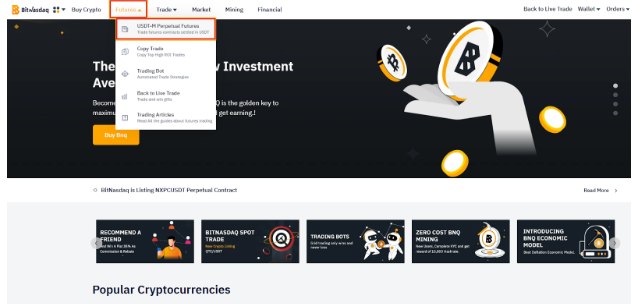
On the header, click on Futures, and in the dropdown menu select USDT-M Perpetual Futures.
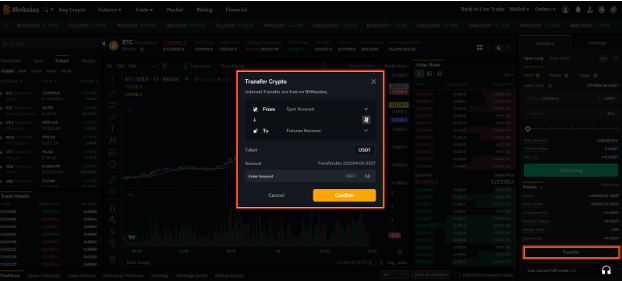
Next click on Transfer button to transfer funds, USDT, to your Future Wallet.
Once you have USDT in your Future Wallet, choose the Perpetual Coin to trade from the listings.
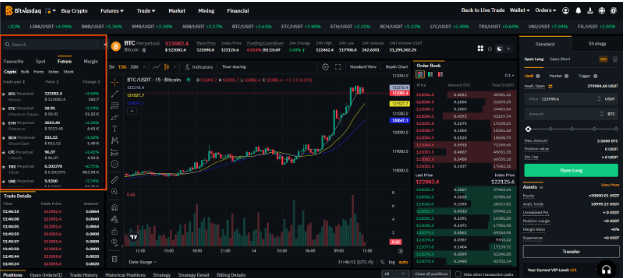
Next click on the Open Short option to start with Open Short.
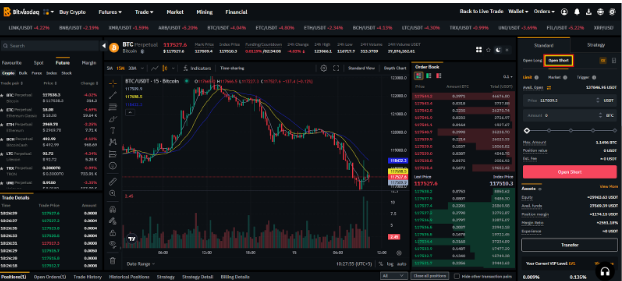
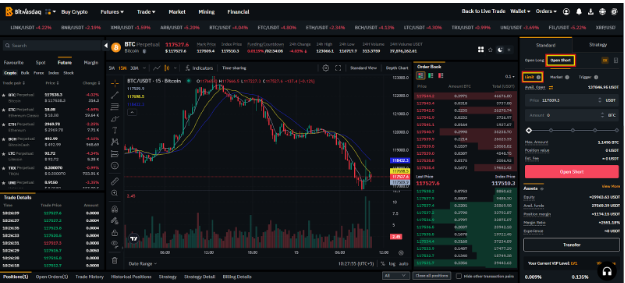
Now here in the order type choose Limit, to start with Open Short Limit position.
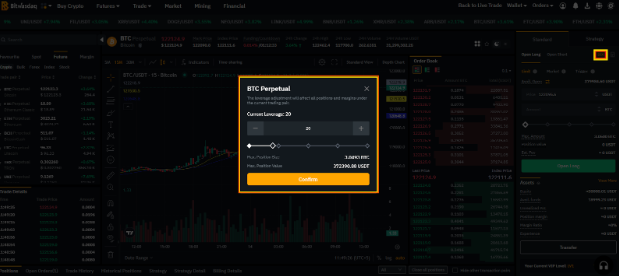
Next click on Leverage, to adjust your Leverage for the position according to your strategy.
Once you have set your leverage, enter the USDT price of your selected asset. This is the price which when the market hits, your trade will enter open Positions from Open Orders.
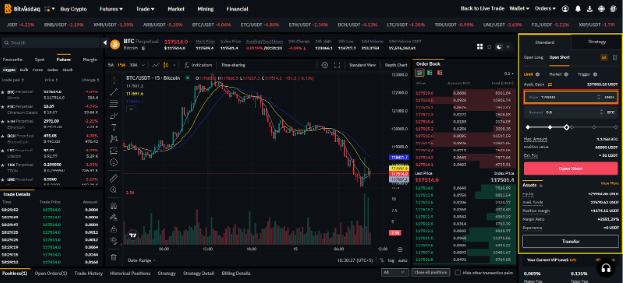
Next enter the amount asset contract you want to trade, example amount of BTC.
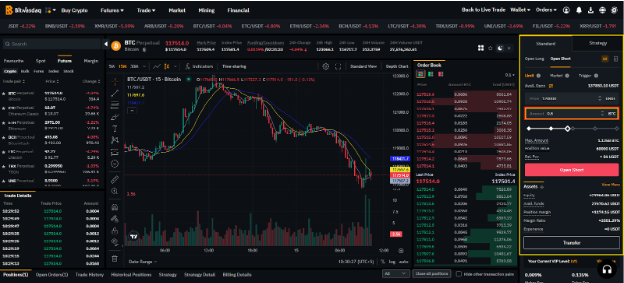
Double check all the details and click on Open Short button.
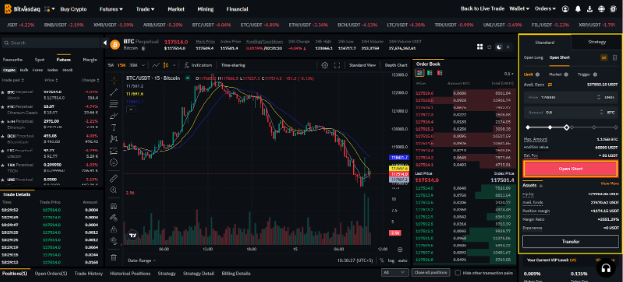
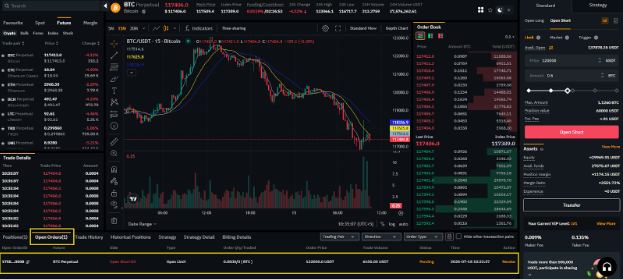
Your order will be added to Open Orders, until the market reaches your entered price.
Once your price is met, the order will enter Position, where it will be actively traded.
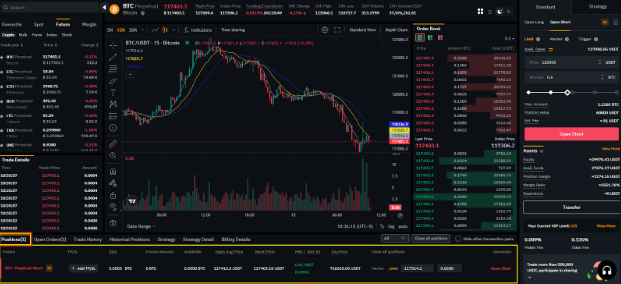
Traders can also add Stop-Loss and Take-Profit to their trades.
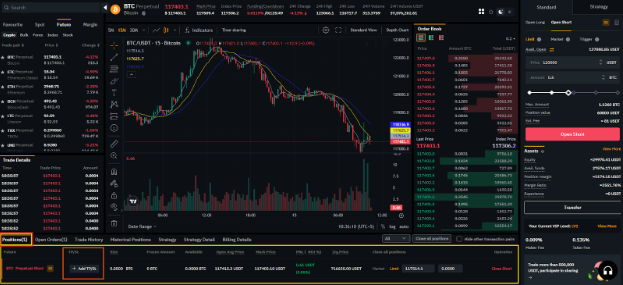
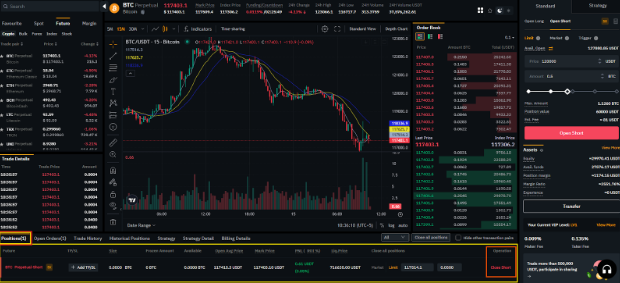
Traders can also revoke any position at any time, by clicking on the Close Position button.
Open Short Limit Positions Via BNQ Global App
Follow these step-by-step instructions to Open Short Limit Position on the BNQ Global app:
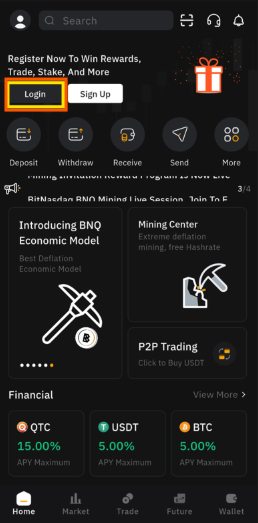
Download the BNQ Global app and login to your BNQ Global account.
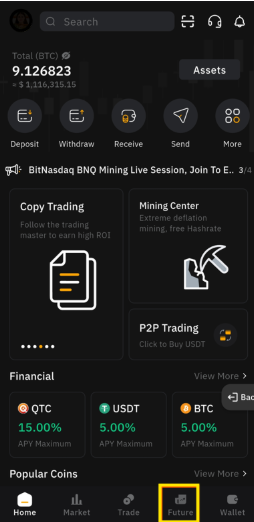
Once logged in, in the bottom menu, tap on the Future tab.
Next tap on the Transfer icon to transfer funds, USDT, to your Future Wallet.
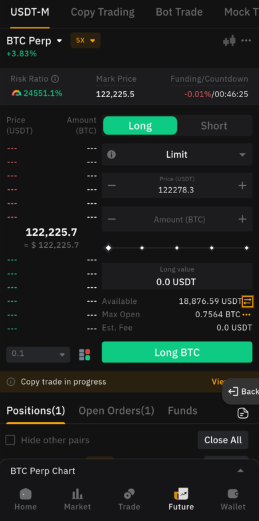
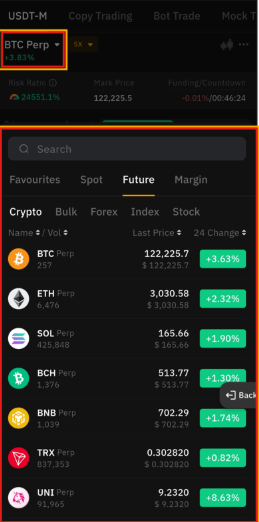
Once you have USDT in your Future Wallet, tap on the Perpetual Coin name on the top left corner, here select the Perpetual Coin to trade from the listings.
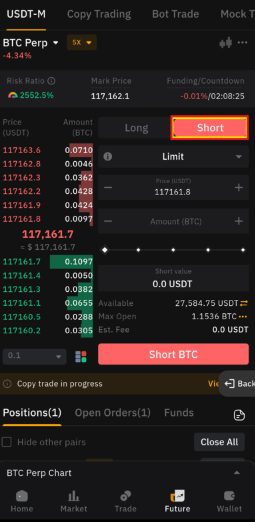
Next tap on the Short option, to start with Open Short.
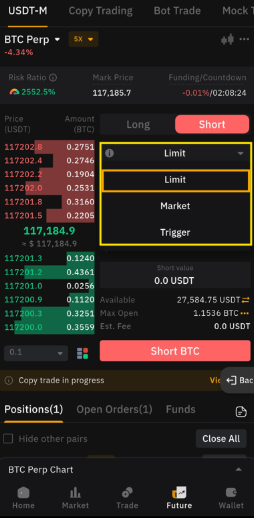
Next choose you order type as Limit, to start with Open Short Limit position.
Now tap on Leverage, to adjust your Leverage for the position according to your strategy.
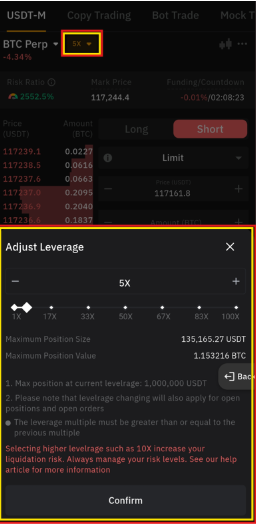
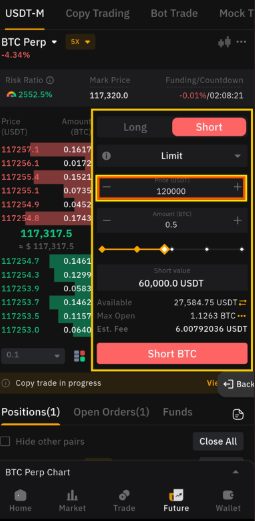
Once leverage is set, enter the amount of USDT price of your selected asset. This is the price which when the market hits your trade will enter Positions from Open Orders.
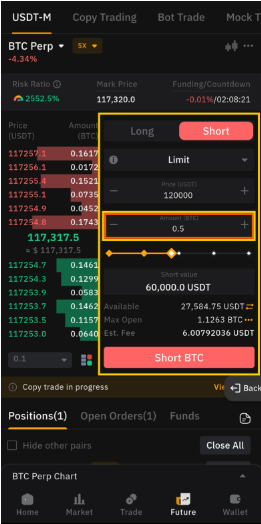
Next enter the amount of asset you want to trade, example amount of BTC.
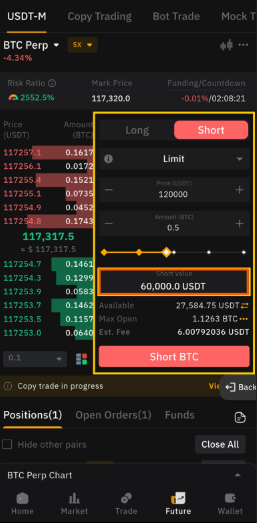
You can also instead enter the amount of USDT you want to trade in this Short position.

Now double check all your entered data and tap on the Short button.
Your order will now be added to Open Orders, until the market price reaches your entered price.
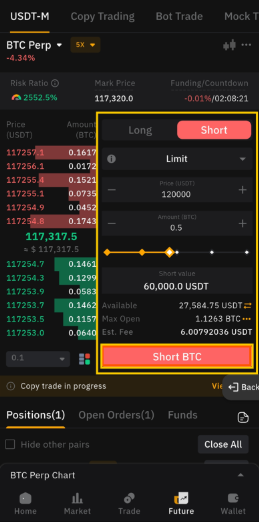
Once the market reaches your entered price the order will automatically go to open Positions.
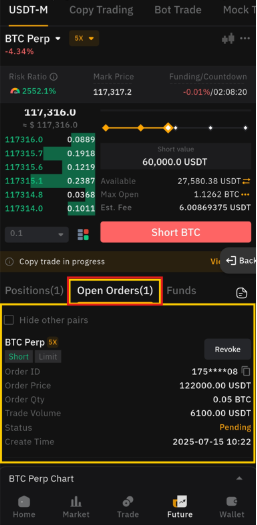
Here you can also add Stop-Loss and Take-Profit to the trade.
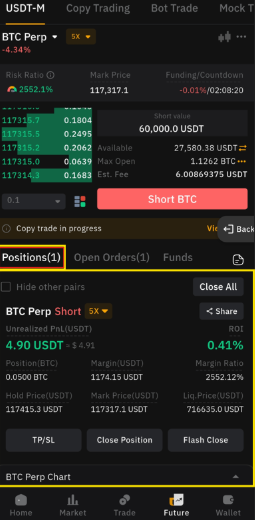
Traders also have the option to close any position by clicking on the Close Position button.
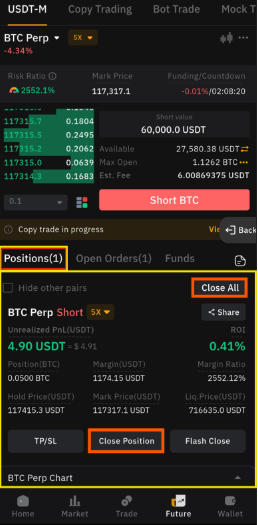
BNQ Global Future Trading is simple, easy, and intuitive for users to execute. With multiple guides, and tool tips, users can stay gather all the necessary information for the trade. Traders can also use the calculator feature available to evaluate their trade strategy before opening the position.
Trade Futures on BNQ Global today, with high leverage and a liquid market, it is the place for you to join.